You can insert new columns, rearrange or resize existing ones, and remove those you no longer need.
Insert columns
-
Click the arrow next to the Insert button to reveal a pull-down menu or long-press the Insert Column button (see: Toolbar Buttons). From this menu, select Before or After.
-
Click the Insert button or the Insert Column button in the toolbar.
Note: If you select Before, the new column will be inserted before the current selection. If you select After, it will be inserted after. If no columns are selected, the new column will be added to the leftmost or rightmost edge of the table.
Tip: Use shortcuts for faster column insertion:
- Press ⌥⌘← to prepend a column.
- Press ⌥⌘→ to append a column.
Move columns
-
Click and drag the header of the column you want to move.
-
Release the mouse once the column is in its new position.
Note: You can only drag one column at a time.
Resize columns
Do any of the following:
-
Resize a column manually: Place the pointer over the divider at the right edge of the column header. When the pointer changes to a double-headed arrow, drag the divider.
-
Fit a column to its contents: Double-click the divider at the right edge of the column header. You can also right-click the column header, then choose Fit Width to Content. Delimited fits the column to whichever is wider: the column name or the widest value in the column, including values that are not currently visible.
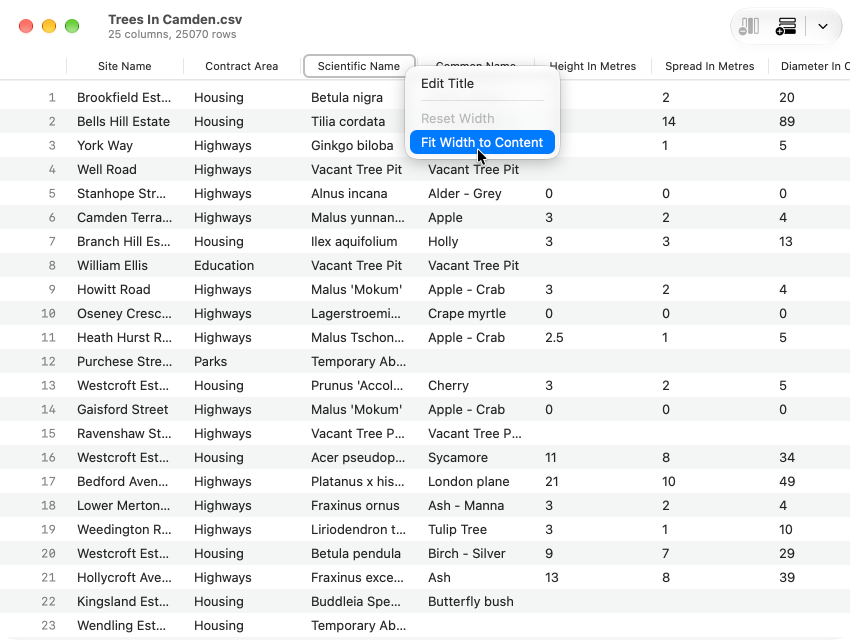
Choose Fit Width to Content from a column header’s shortcut menu. -
Fit several columns: Select the columns, right-click one of the selected column headers, then choose Fit Widths to Content.
-
Restore the standard width: Right-click a column header, then choose Reset Width. To reset several columns, select them, right-click one of the selected column headers, then choose Reset Widths.
Remove columns
-
Select the columns you want to remove.
-
Click the Remove button in the toolbar.
Tip: Press the ⌫ (Delete) key to quickly remove columns.