Delimited icon

Find and replace table data

You can find text in your table and replace individual matches or every match at once.

Note: Starting to edit a table value or column name closes the Find bar. Your search and replacement text are retained. Press Return or click elsewhere to finish editing, then reopen Find or Find and Replace when you want to continue searching.


Find table data

  1. Choose Edit → Find → Find…, or press ⌘F.

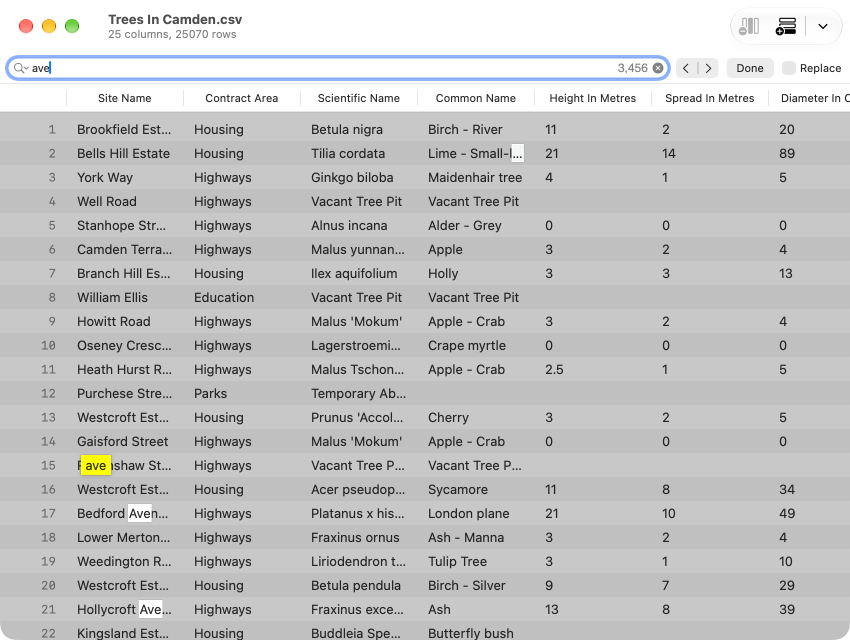
  2. Enter the text you want to find. Delimited outlines visible matches as you type and marks the current match. If necessary, the table scrolls to bring the current match into view.

    Find bar containing "ave", with visible matches in the table and the current match highlighted in yellow.
    Visible matches are outlined as you type, and Delimited highlights the current match.
  3. Do any of the following:

    • Go to the next or previous match: Click the arrow buttons next to the search field. You can also press ⌘G to go to the next match, or ⇧⌘G to go to the previous match.

    • Set options for the search: Click the Search Options button in the search field, then select or deselect options in the menu. For instance: deselect Ignore Case to match capitalisation exactly.

  4. When you have finished, click Done.


Replace table data

  1. Choose Edit → Find → Find and Replace…, or press ⌥⌘F.

  2. Enter the text you want to find, then enter the replacement text in the Replace field.

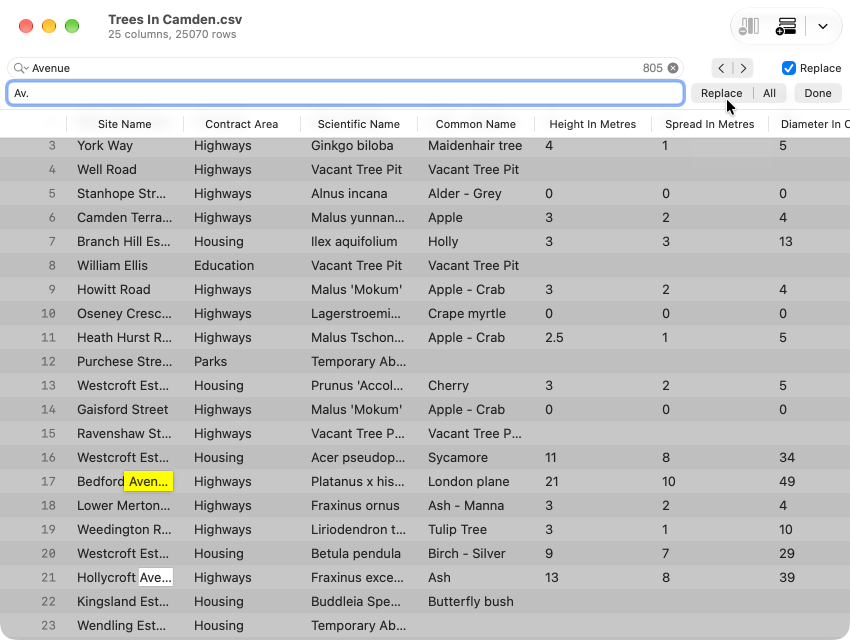
    Find and Replace bar with "Avenue" in the search field and "Av." in the replacement field, above a highlighted table match.
    The replacement field and controls appear below the search field.
  3. Click Replace to replace the current match and continue to the next match, or click All to replace every match in the table.

  4. When you have finished, click Done.

Tip: After you close the Find bar, press ⌘Z to undo a replacement. A Replace All operation is undone in a single step.


What Delimited searches

Find and Replace searches all table values. It does not search column names or the generated row numbers.

A match must be contained in a single cell. Selecting rows or columns does not limit the search or a Replace All operation.

Note: In a very large table, the first search after opening or changing the table may take a moment.